A high-traffic WordPress website can perform well, but performance must be designed rather than patched.
Installing a caching plugin is useful, but it is not a complete strategy.
For content platforms and WooCommerce stores serving customers in the USA, Canada, Middle East or globally, the architecture should consider traffic patterns, database load, media, plugins and external integrations.
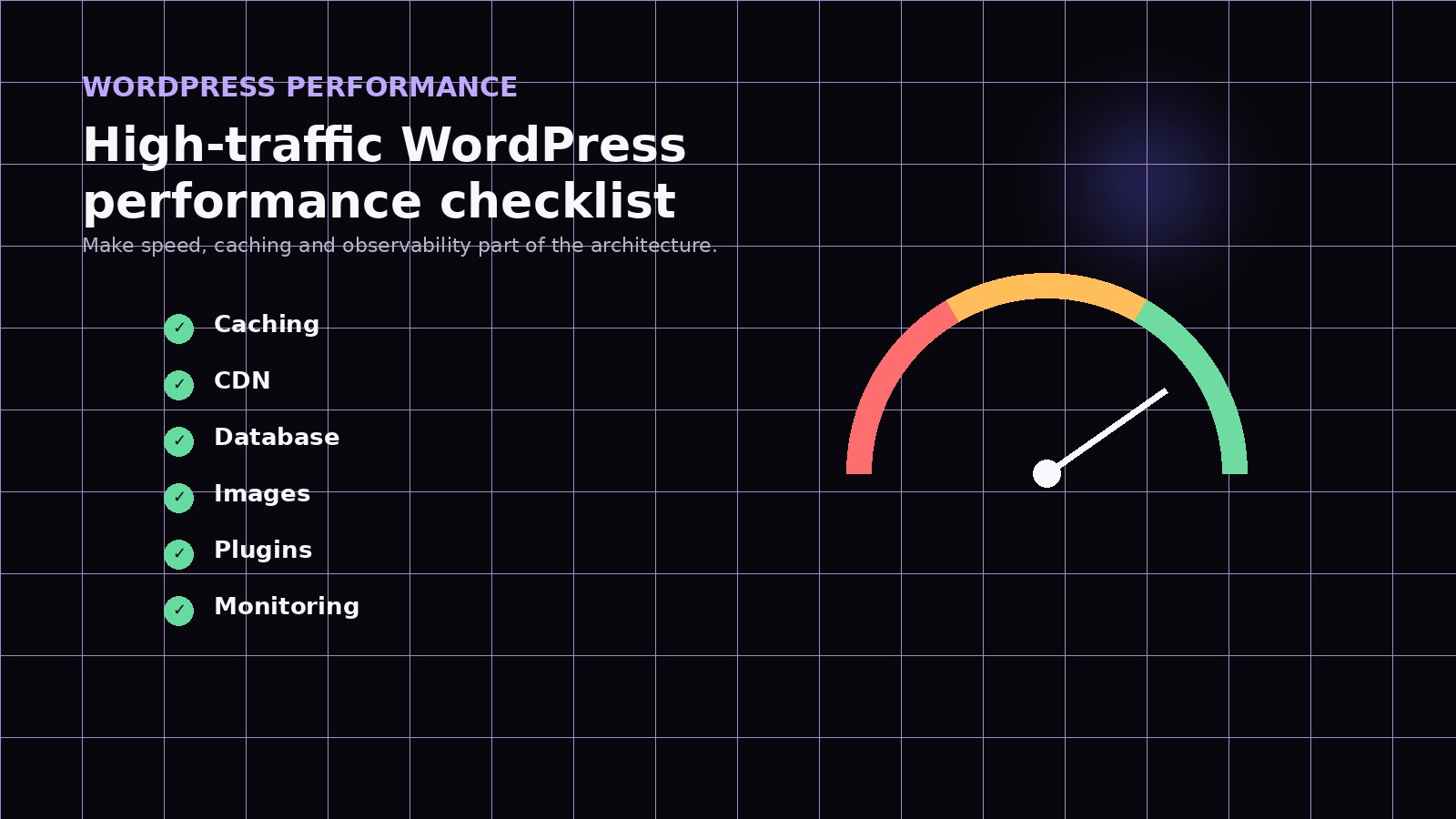
This is the checklist we use when reviewing WordPress performance.
1. Start with the hosting environment
Hosting is the foundation.
The server should provide enough CPU, memory and PHP workers for the traffic profile.
A website with mostly cached marketing pages has different requirements from a WooCommerce store with logged-in customers and personalized sessions.
Review:
- PHP version
- PHP workers
- Memory limits
- Database resources
- Disk performance
- Server location
- Automatic backups
- Staging environments
- Monitoring
Cheap shared hosting can be appropriate for small sites, but it becomes risky when revenue depends on consistent performance.
2. Use full-page caching where possible
Anonymous visitors should receive cached pages whenever the content allows it.
This avoids executing WordPress, PHP and database queries for every request.
Caching may be provided by:
- The host
- A reverse proxy
- A CDN
- A WordPress caching plugin
The configuration should avoid caching pages that contain private or personalized information.
WooCommerce cart, checkout and account pages require special handling.
3. Add a CDN
A Content Delivery Network can serve static assets from locations closer to users.
This is particularly useful for websites serving multiple regions.
A company targeting the USA, Canada, Saudi Arabia and UAE may have customers thousands of kilometers from the origin server.
A CDN can reduce latency for:
- Images
- CSS
- JavaScript
- Fonts
- Downloadable assets
Some CDN services can also cache full HTML pages and provide security features.
4. Optimize images before they become a problem
Large images are one of the most common performance issues.
Use modern formats such as WebP or AVIF when appropriate, generate responsive image sizes and avoid uploading unnecessarily large source files.
Lazy loading helps with images below the fold, but the primary hero image should usually be optimized for immediate display rather than delayed.
Image optimization should be part of the publishing workflow.
5. Review plugins critically
Plugin count alone does not determine performance.
One poorly designed plugin can create more load than twenty lightweight plugins.
Review plugins for:
- Slow database queries
- External requests
- Unnecessary scripts on every page
- Duplicate functionality
- Abandoned maintenance
- Security risk
If a plugin loads JavaScript on every page but is used only on one form, that asset should not affect the entire site.
6. Keep the database healthy
WordPress databases accumulate history.
Common sources of bloat include:
- Post revisions
- Expired transients
- Session data
- Plugin logs
- WooCommerce records
- Unused metadata
Do not delete data blindly. Understand what the tables contain first.
For high-volume WooCommerce stores, database indexing and query performance deserve specific attention.
7. Reduce third-party scripts
Marketing websites often accumulate analytics, chat widgets, pixels, A/B testing tools and tracking scripts.
Each third-party script can affect loading and responsiveness.
Ask whether every script is still required.
Load scripts only where needed and consider server-side tracking where appropriate.
8. Measure Core Web Vitals
Performance should be measured from the user's perspective.
Core Web Vitals provide useful indicators around loading, interaction and visual stability.
Look beyond the headline score.
Identify which resource or behavior is causing the issue.
For example:
- Large Contentful Paint may be affected by the hero image or slow server response
- Interaction delays may come from JavaScript
- Layout shift may come from images or dynamic elements without reserved space
The fix depends on the actual bottleneck.
9. Monitor real traffic
A staging test cannot reproduce every production condition.
Monitor:
- Server response time
- Error rate
- Database load
- Slow endpoints
- Cache hit rate
- Checkout failures
- External API latency
Performance is operational.
A website can be fast today and slow after a plugin update, traffic spike or integration change.
10. Treat WooCommerce differently
WooCommerce adds dynamic operations.
Cart, checkout, account and order workflows cannot always be cached like standard content pages.
High-traffic stores should consider:
- Object caching
- Optimized product queries
- Payment gateway reliability
- Background job load
- Inventory synchronization
- Search performance
- Checkout customization
The goal is not only a fast homepage. It is a reliable buying journey.
Performance is a system
A WordPress performance project should look at the entire request path:
User → CDN → web server → PHP → WordPress → database → external services.
Improving only one layer may not solve the real bottleneck.
For a business where WordPress or WooCommerce supports revenue, performance should be treated as part of product engineering rather than a one-time optimization task.